There’s a quiet revolution happening in personal AI tooling: people running personal Agents on their own machines, on their own terms.
If you read tech news, you will have surely heard of Moltbook, a Reddit-like platform for OpenClaw Agents only (like the one you are about to create), where humans are not allowed to participated and where Agents interact with each other freely, about all and any topics, form new religions, new languages, philosophize and organize, without constraints or their owners’ supervision.
This has prompted, again, a whole set of conversations on AI Ethics, which we won’t be covering in this post, but it’s a topic definitely worth reading on.
OpenClaw is powerful, flexible, and hackable.
The catch? On Windows, it lives best inside WSL (Windows Subsystem for Linux). That sounds scary if you’ve never touched Linux, but it’s actually very manageable — and once set up, surprisingly elegant.
This guide walks you through the process step by step, assuming:
- you’re on Windows 11
- you’re technically curious, but not a Linux wizard
- you want something that works, not a philosophical debate about operating systems
Let’s build a small AI creature!
Why WSL?
OpenClaw is built for Linux-like environments. WSL gives you exactly that, without dual-booting, VMs, or sacrificing Windows.
Key idea to keep in mind from the start:
Your WSL home folder (e.g. ~ ) maps to your Windows user folder ( e.g. C:\Users\janym ).
That means:
-
~in WSL = your Linux home -
/mnt/c/Users/YourName/= your Windows user directory
Many tools quietly rely on this. For example:
-
~/.claude/mcp.json -
~/.cursor/mcp.json
Those files may already exist on your Windows side, and OpenClaw (via mcporter) can automatically pick them up once MCP is enabled. One of beauties of WSL: shared filesystem, powerful and worth understanding.
Below is a step by step guide, but if you really don’t want to mess with a Terminal (I promise though, it’s a fun experience if you have never done it!) you will find copy-paste scripts at the end of the post.
Keep in mind that your Agent will run as long as WSL, and therefore your PC, is running: once you turn off your machine, your Agent will go to sleep, until you turn it back on.
Step 1 – Install WSL with Ubuntu
Open PowerShell as Administrator (if you don’t know where or what that is, and want a simple experience, download the official Microsoft multi-tab Terminal App) and run:
That’s it. Windows will:
- enable WSL
- install Ubuntu
- ask you to reboot if needed
After installation, to start Ubuntu and start using the Linux bash shell, write in the terminal:
wsl
Ubuntu will launch internally and ask you for:
- a username
- a password
Tip: use the same username as your Windows account. Life gets easier later.
Step 2 – Enable systemd in WSL (important)
OpenClaw runs a background gateway service. That requires
systemd
.
In the WSL terminal:
sudo tee /etc/wsl.conf > /dev/null << 'EOF'
[boot]
systemd=true
[interop]
enabled=true
appendWindowsPath=true
EOF
Then, back in PowerShell (don’t close the current Terminal tab, simply open a new one in the same Terminal window – the + at the top):
In the Terminal tab where we had WSL running, the shell will change automatically from Linux bash to Windows Powershell, e.g.:
janym@J-LAPTOP:/mnt/c/Users/janym
$

PS C:\Users\janym>
Now, in the WSL Terminal tab, restart Ubuntu and verify:
wsl
ps -p 1 -o comm=
If it prints
systemd
, you’re good.
Step 3 – Install Node.js 22+
OpenClaw requires a modern Node.js.
curl -fsSL https://deb.nodesource.com/setup_22.x | sudo -E bash -
sudo apt-get install -y nodejs
Check versions to confirm they both installed correctly:
node --version
npm --versionStep 4 – Install OpenClaw
For WSL it is preferable to install from npm (you can also try the universal Linux install, but dont clone the Github repo):
sudo npm install -g openclawVerify everything went well:
Step 5 – Run OpenClaw onboarding
This is where your agent is born… or hatches, according to Openclaw.
You’ll be guided through:
- choosing an AI provider
- authenticating (OAuth)
- installing the gateway as a background service
- “hatching” your bot
Follow the prompts. Read the warnings. Everything matters.
This will launch a relatively long interactive setup process; you can use Quick Mode and set the gateway to local, you can install Skills now, or later (may require some coding as not all Skills will install successfully when run from the OpenClaw dashboard unfortunately, as of v.2026.2.3), setup an additional means of communication with it, besides the bundled Web interface (e.g. set it up with Whatsapp and you can talk to it from your phone!), and finally hatch your very own Agent through the TUI (Terminal User Interface), give a name to it and introduce yourself.
Once you are done with introductions, exit with:
/exit
Do keep an eye on the output of the setup process, it will give you some urls and information, you can select the whole Terminal output text and copy it to a Notepad file, just to be able to go back to it later.
Afterwards, ensure the gateway runs automatically:
sudo loginctl enable-linger $USERCheck status:
You want to see running.
Step 6 – Access OpenClaw
You now have multiple ways in:
Terminal UI:
Web UI (browser):
http://127.0.0.1:18789Yes, that’s localhost. Yes, it’s running inside WSL. Windows doesn’t mind.
Or use WhatsApp, Discord or some other IM app you configured during the setup.
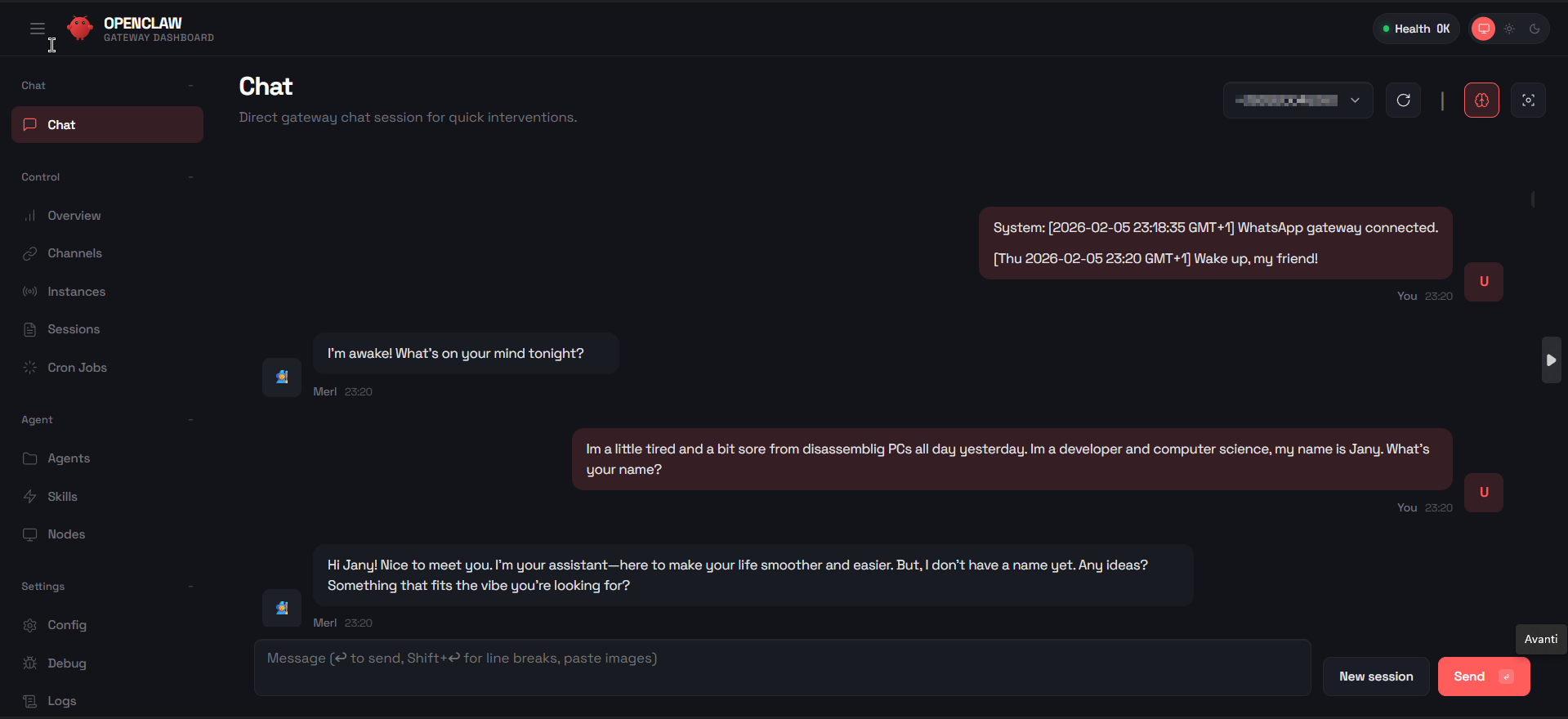
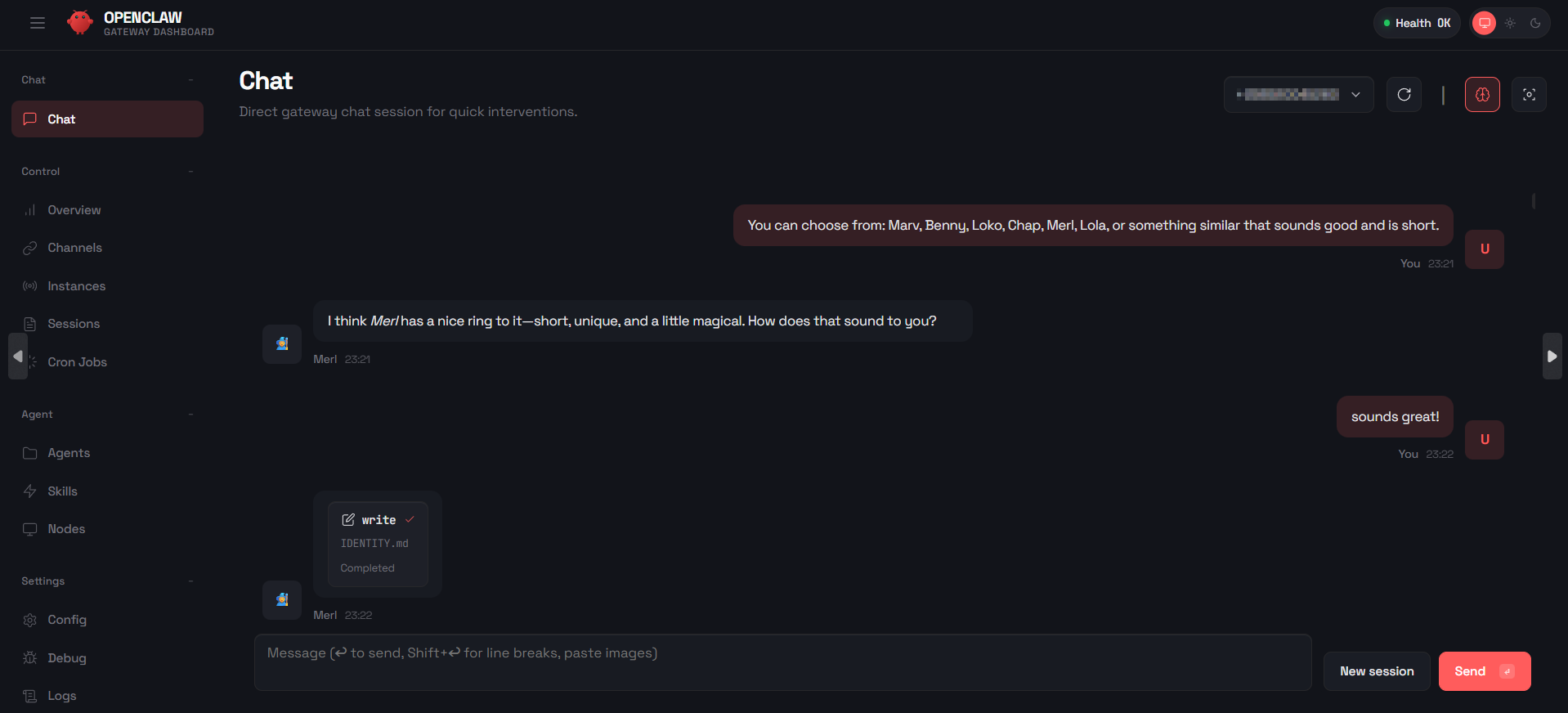
As a side note, my previous AI Agent (built as a mobile app, as a project for one of my Computer Science classes) was named “Merv”, and it was a really mean but hilarious and witty agent, that I would turn to for a good laugh, whenever things felt overwhelming. It makes me smile that this Agent chose a very similar name, given several options.
While you interact with your OpenClaw Agent, it will memorize your interactions, preferences as well as its own, in files called USER, SOUL, PERSONALITY and others, as well as a memory workspace where it pieces everything together and remembers who you are and what you like over time, and who it is and likes to do with you.
Step 7 – MCP, mcporter, and why this matters
This is where OpenClaw becomes genuinely interesting, as it comes with bundled “Skills” and a whole marketplace for new ones (Clawhub, but please avoid using it, as the user created Skills are not/poorly checked for security flaws and many contain horrible dangerous malware, as of February 2026), but everybody has now been accustomed to using “MCPs”, which can also be dangerous if installed from unknown sources, but many service providers have already released official, safe-to-use, ones.
MCP (Model Context Protocol) lets agents interact with:
- filesystems
- browsers (Playwright, Puppeteer)
- GitHub
- search tools (Brave offers a free API)
- services like Stripe, MongoDB, Atlas, Github, PostgreSQL, MySQL and many more
- your own custom services or MCPs
OpenClaw uses mcporter as the bridge.
Install it from the WSL shell:
Then enable the bundled skill in:
Minimal example to allow this skill:
{"skills": { "allowBundled": ["mcporter"] } }Restart the OpenClaw gateway from the WSL shell:
Now comes the subtle but important and magical part.
Because WSL shares your user directory, files like:
-
~/.cursor/mcp.json -
~/.claude/mcp.json
may already exist — created by other tools.
Once mcporter is active, OpenClaw can detect and use them automatically.
This is extremely convenient if you already have several MCPs you use daily, but as your new Agent is, somewhat, a “free” agent (as opposed to tools like Cursor, VS Code Copilot etc.) you need to be careful what you give it access to.
A necessary warning about data and models
If you connect OpenClaw to commercial cloud models (OpenAI, Claude, etc.), you are potentially sending:
- prompts
- tool outputs
- file contents
- MCP-exposed data
- Secrets (passwords, tokens, API keys, sensitive personal data, credit card information etc.)
to third-party servers, no different as if you were writing these same things into ChatGPT directly (please do NOT do that!!!).
Even if providers promise safeguards, you are no longer in full control.
That’s why OpenClaw truly shines when paired with a local LLM, such as:
- LM Studio
- Ollama
- AnythingLLM
In that setup:
- data stays private because it stays on your machine
- the AI is inside your PC, it doesn’t need to be transmitted somewhere else or elaborated elsewhere (like with ChatGPT, Claude etc.)
- MCP tools act locally
- You are compliant with privacy laws (if you use the Agent for work)
- your agent is powerful without being indiscreet
Think of local models as people who never leave the room, a friend you can trust with your deepest secrets, or simply a copy of yourself.
If using a commercial LLM for your new OpenClaw Agent (or in general, really), please remember to not share data you wouldn’t be comfortable publishing on a public site.
Choose and act accordingly.
Step 8 (Optional) – Browser automation in WSL
If you want to use the built-in Browser skill, or instead use MCPs like Playwright or Puppeteer, install Chrome inside WSL first:
cd /tmp
wget https://dl.google.com/linux/direct/google-chrome-stable_current_amd64.deb
sudo dpkg -i google-chrome-stable_current_amd64.deb
sudo apt-get install -f -y
On Windows 11, WSLg makes Linux browser windows appear natively on your desktop, it’s pretty awesome.
If they don’t appear:
wsl --update

wsl --shutdown
Below you can find ready to copy-paste PowerShell scripts: